IPv4 in the dashboard
Dedicated IPv4 addresses for a term. Everything is done at app.ipv.rent, no API key needed. Account and balance - in Getting started.
1. Buy addresses
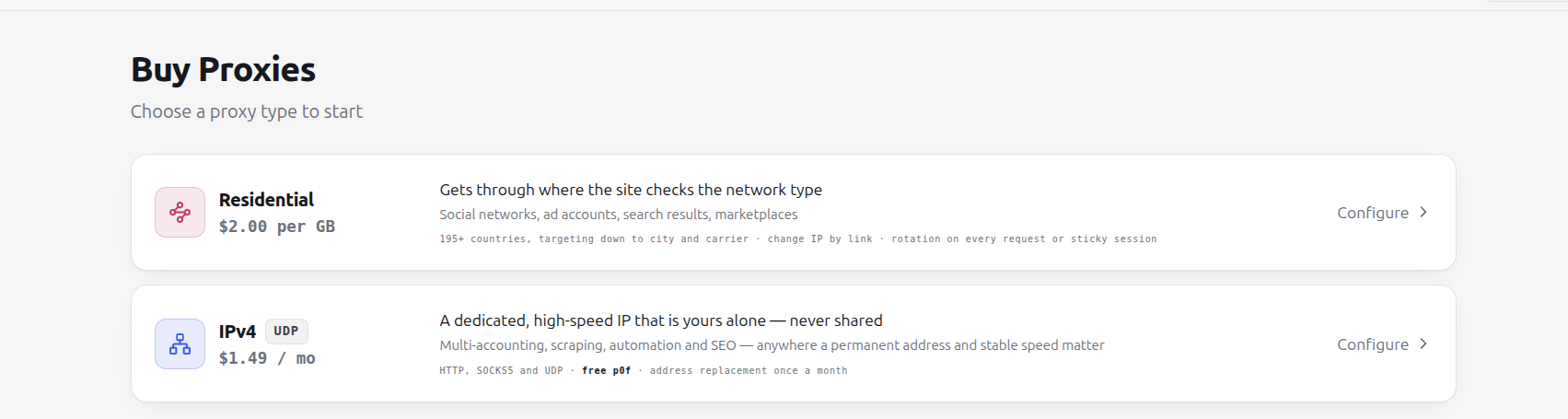
Section titled “1. Buy addresses”Open Buy Proxies and click Configure on the IPv4 tile.
In the purchase form the steps open one after another:
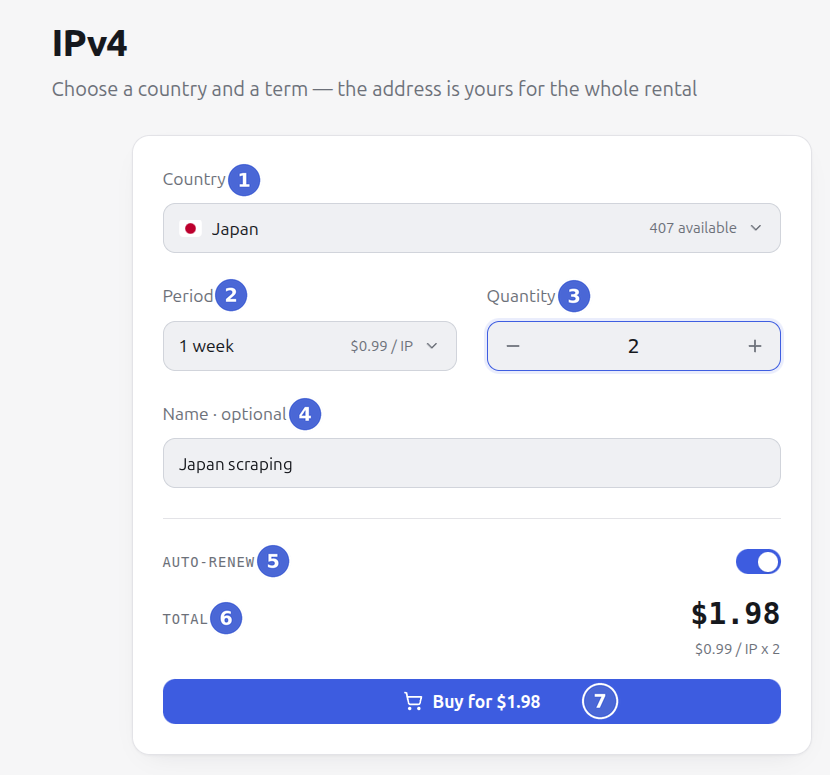
| No. | Field | What to choose |
|---|---|---|
| 1 | Country | country of the addresses; on the right - how many addresses are free |
| 2 | Period | 1 week, 2 weeks, 1 month, 2 or 3 months; next to it - the price per address |
| 3 | Quantity | how many addresses; all of them become one package |
| 4 | Name | optional - the package name in your list |
| 5 | Auto-renew | on by default: the package renews itself one day before the term ends |
| 6 | Total | amount to pay: price per address × quantity |
| 7 | Buy for $… | payment from the balance |
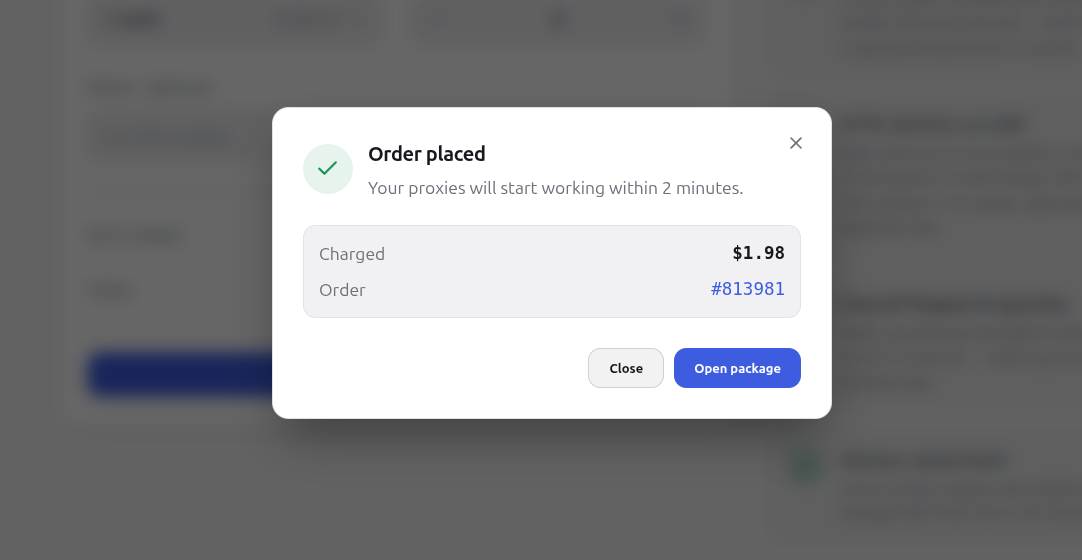
After payment the Order placed window appears with the amount and the order number. The addresses start working within 2 minutes. Open package leads to the package page.
2. Get the addresses
Section titled “2. Get the addresses”My Proxies → open the package.
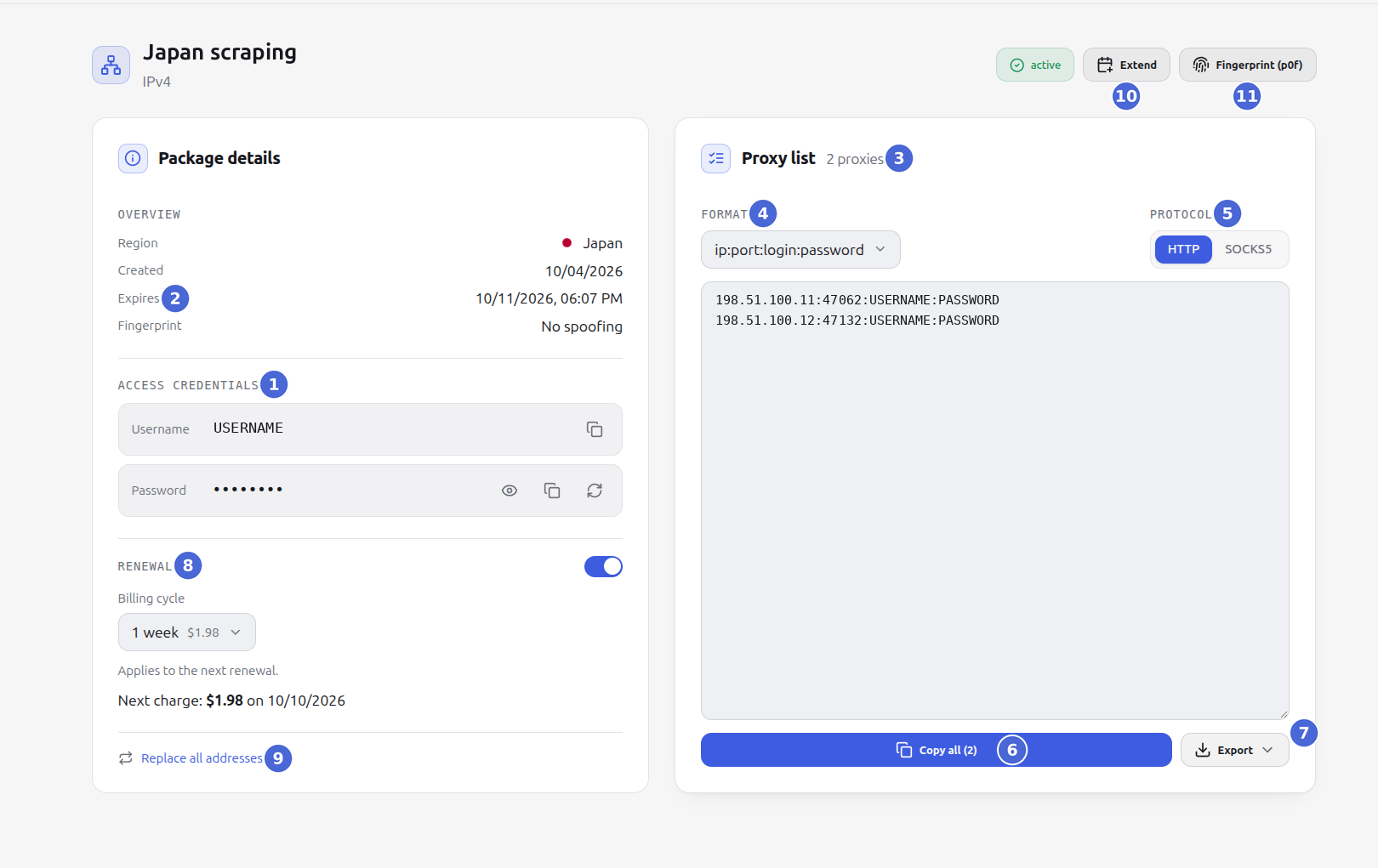
| No. | Element | What it does |
|---|---|---|
| 1 | Access credentials | login and password - one for all addresses of the package; next to the password - show, copy and reissue |
| 2 | Expires | end of the paid term |
| 3 | Proxy list | all addresses of the package, ready connection lines |
| 4 | Format | how a line is written, see the table below |
| 5 | Protocol | HTTP or SOCKS5: every address has both protocols, SOCKS5 has its own port |
| 6 | Copy all | the whole list to the clipboard |
| 7 | Export | TXT - lines as on screen, CSV - a table for Excel and scripts, JSON - an array of objects |
| 8 | Auto-renew | switch, cycle and date of the next charge - more |
| 9 | Replace all addresses | new addresses in the same country - more |
| 10 | Extend | pay for one more term - more |
| 11 | Fingerprint (p0f) | network fingerprint spoofing - more |
| Format | What it looks like | Where it fits |
|---|---|---|
ip:port:login:password | 198.51.100.11:10010:USER:PASS | antidetect browsers, proxy managers |
login:password@ip:port | USER:[email protected]:10010 | tools that expect the credentials first |
protocol://login:password@ip:port | http://USER:[email protected]:10010 | curl, code, environment variables |
The other formats in the list are the same fields in a different order; pick the one your tool asks for.
3. Connect
Section titled “3. Connect”Paste the line into a browser profile or proxy manager as is. A check from the terminal:
The response is your exit address: it matches the address from the list and does not change for the whole term.
UDP works over SOCKS5 - for games, calls and QUIC-based services.
Extending
Section titled “Extending”The Extend button → choose a period → Pay and extend. The term is added to the current end date; the addresses and login do not change.
Auto-renewal
Section titled “Auto-renewal”The Auto-renew block on the package page (8 in the screenshot above):
- the switch turns auto-renewal on and off;
- Billing cycle - the term to renew for each time;
- Next charge - date and amount: one day before the term ends, at the current price.
If there is not enough money at the moment of the charge, attempts repeat every few hours for another 3 days after the term ends - top up the balance and the package renews itself. After that auto-renewal switches off.
Replacing addresses
Section titled “Replacing addresses”Replace all addresses - all addresses of the package change to new ones in the same country. The login, password and term stay. The replacement takes about a minute, after it the old addresses do not work - update them in all your tools.
Addresses can be replaced once every 30 days: after a replacement the button shows the date from which you can do it again. A single address of a package cannot be replaced.
p0f fingerprint
Section titled “p0f fingerprint”What it is
Section titled “What it is”When you connect to a site, network packets carry TCP/IP service parameters: initial TTL, window size, set of options. They show which operating system sent the packet - this is called a passive fingerprint, or p0f. The address itself runs on a server system, and without spoofing its fingerprint is a server one.
Anti-fraud systems compare this fingerprint with what the browser reports. The browser says “Windows, Chrome”, but the packets came from a server - that is a mismatch, and the account gets extra suspicion. Spoofing makes packets from your addresses look like packets of the chosen system.
When to turn it on
Section titled “When to turn it on”- you work with accounts through an antidetect browser;
- the platform is known for strict anti-fraud: ad accounts, social networks, marketplaces, payment services.
For scraping and requests from scripts a fingerprint is usually not needed.
How to turn it on
Section titled “How to turn it on”The Fingerprint (p0f) button on the package page. Free, one profile for all addresses of the package.
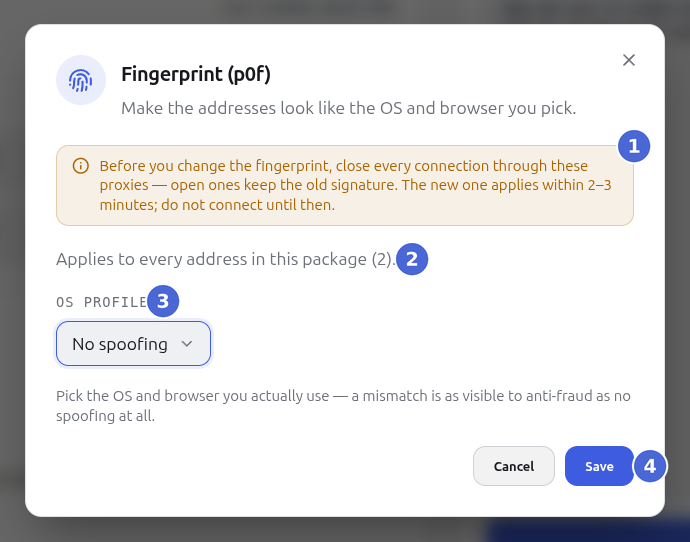
| No. | Element | What it means |
|---|---|---|
| 1 | Warning | before the change close all connections through these proxies: open ones keep the old fingerprint |
| 2 | Number of addresses | the profile applies to all addresses of the package |
| 3 | OS profile | Windows 11 (Chrome, Edge, Firefox), Android 14 (Chrome), macOS (Chrome); No spoofing - turn it off |
| 4 | Save | apply the profile |
The new fingerprint takes effect in 2-3 minutes - do not connect until then. You can change or turn it off at any time, also for free.
Which profile to choose
Section titled “Which profile to choose”The one that matches your browser. If the antidetect browser profile is Windows with Chrome, set Windows 11 · Chrome. A mismatch between fingerprint and browser is as visible to anti-fraud as no spoofing at all. There is one fingerprint per package, so keep profiles of different systems on different packages.
How to check
Section titled “How to check”Open a TCP/IP fingerprint check service through the proxy, for example browserleaks.com/tcp. The detected system must match the chosen profile.
Password
Section titled “Password”Reissue password - a new password at once on all addresses of the package, the login stays the same. The old password stops working the moment you click - update it in all your tools.
When the term has ended
Section titled “When the term has ended”If auto-renewal is off or did not go through, at the end of the term the addresses are switched off and a banner appears on the package page:
| Banner | What to do |
|---|---|
| The addresses are switched off, the addresses and login stay the same, a new password is issued | Extend before the “Can be extended until” date - the same addresses and login come back, a new password is issued |
| The addresses are switched off, the addresses, login and password stay the same | Extend before the “Can be extended until” date - everything comes back as it was |
| The addresses have been released | it can no longer be extended - buy a new package |
If something does not work
Section titled “If something does not work”| Symptom | Cause |
|---|---|
| The addresses do not answer right after purchase | The package is being set up, this takes up to 2 minutes |
| All addresses stopped working at once | The term has ended - extend the package |
| Authentication fails | The password was reissued or a new one was issued on renewal - take it from “Access credentials” |
| The old addresses do not work | The addresses were replaced - take the new list |
More: Connection, IPv4. Support: @ipvrent_support, [email protected].